There are many posts about ownCloud
here.
We’ve seen how to install servers. But what about desktop client? Klaas and his friends (sorry friends, I know Klass from openSUSE), made pretty good job on sync your desktop computer with server.
Lately I worked ownCloud-openSUSE wiki . So I wanted to write this post about installing desktop client on openSUSE.
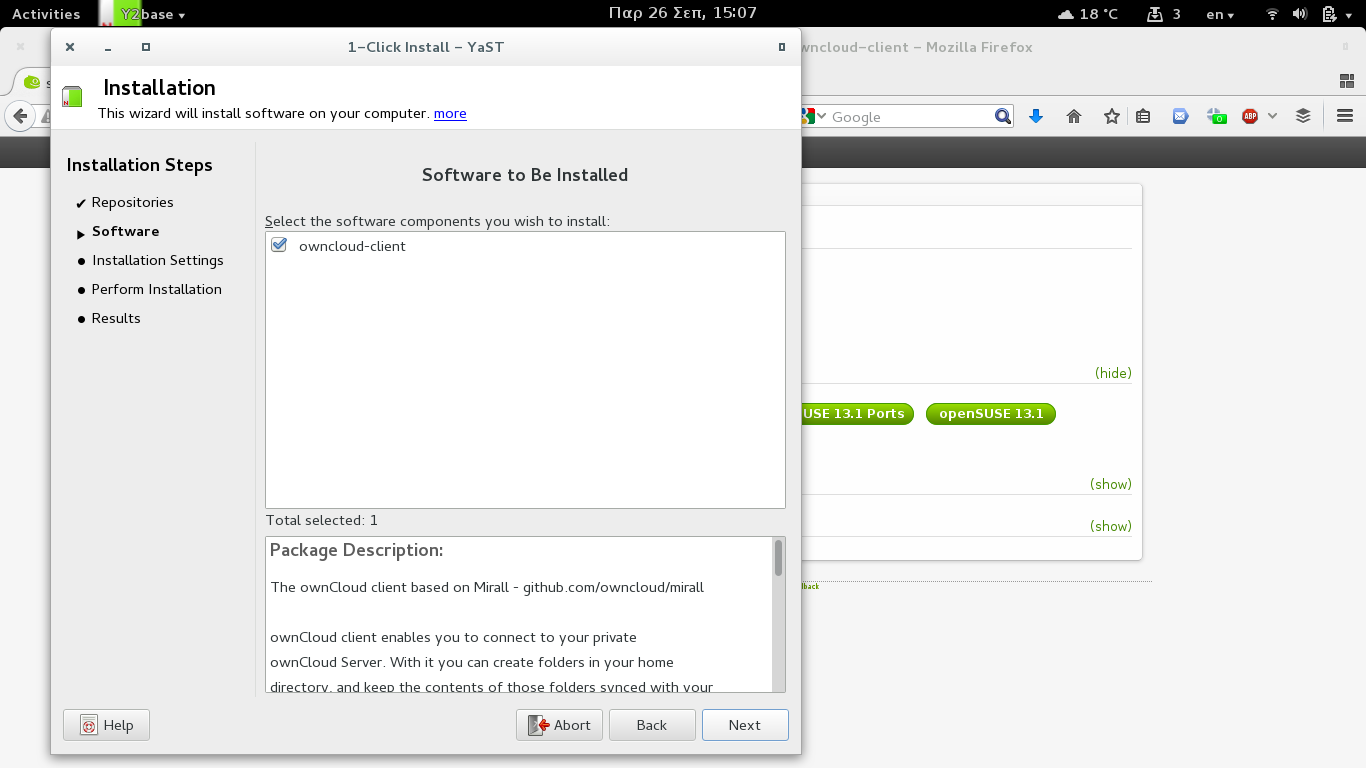
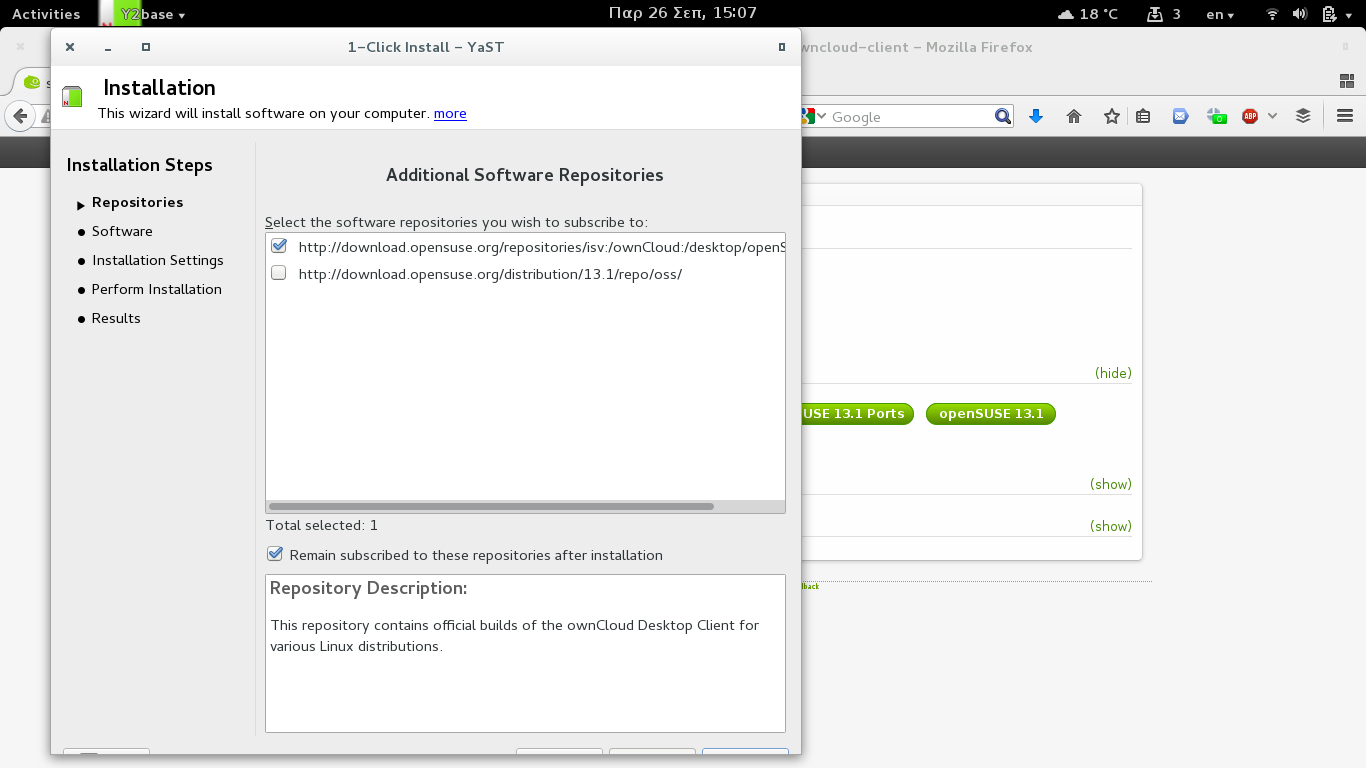
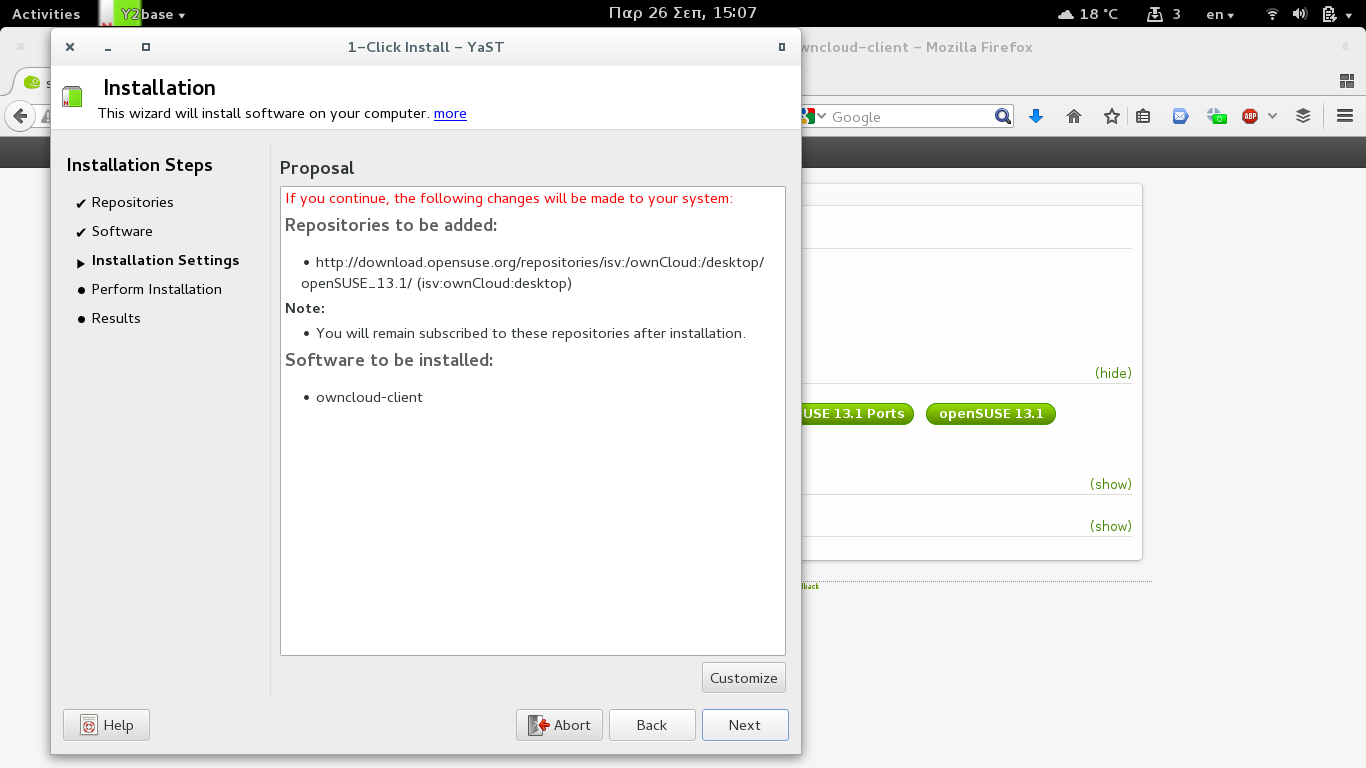
1. Install desktop client using 1-cick-install: Go to ownCloud client desktop installation page and choose openSUSE. There are all versions of openSUSE 1-click install links.
For 13.1 (current version) is the following
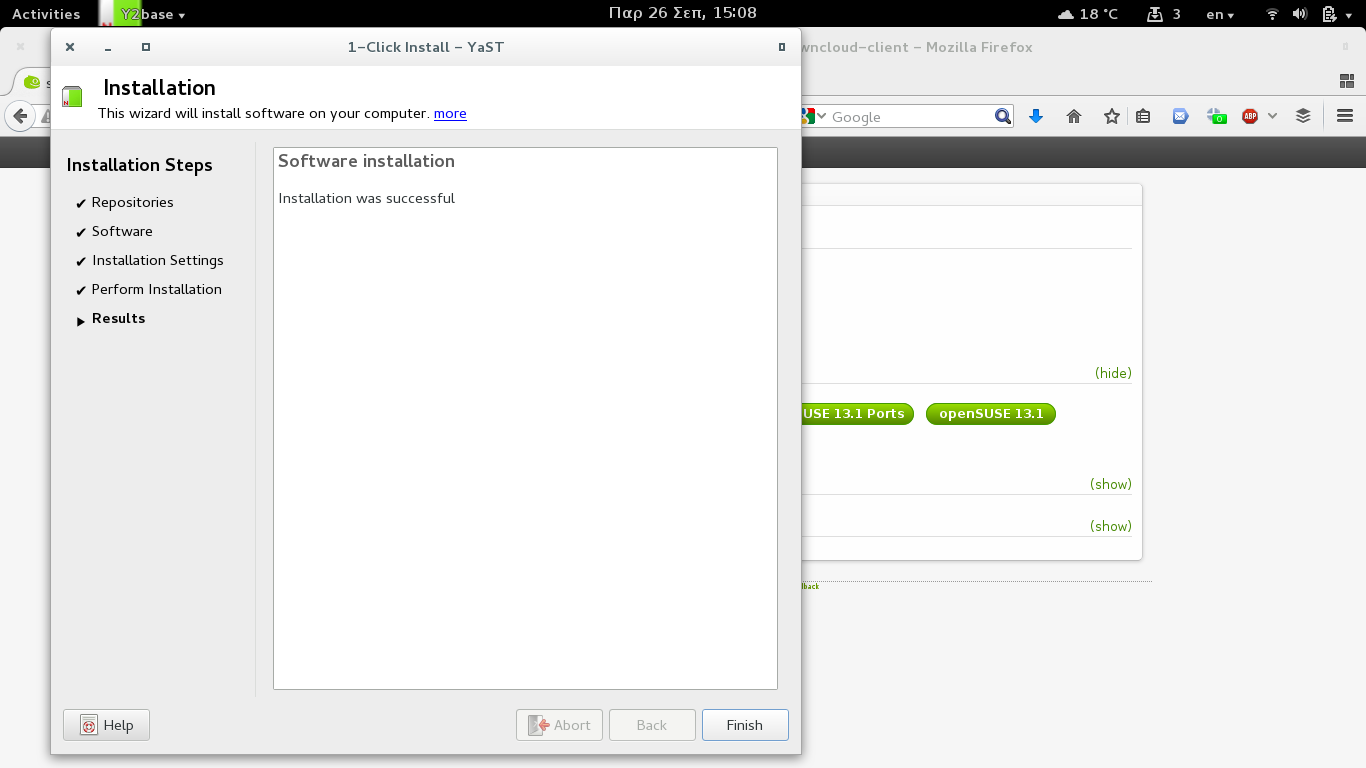
2. Run the client and setup the instance: Find the ownCloud client and run it. You have to setup the client with server/username/password etc.
Write the server URL: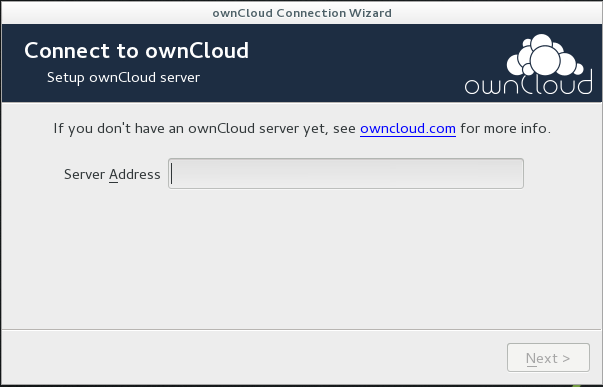
Write your username and password: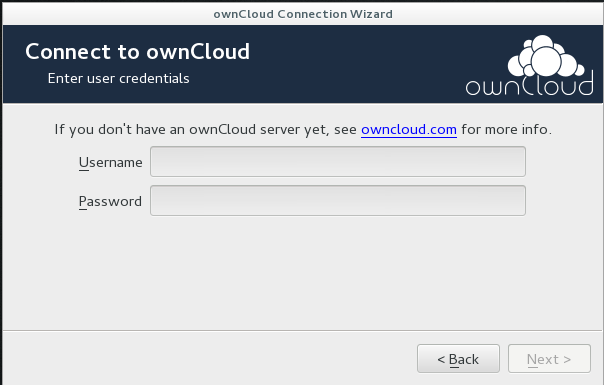
Setup the folders you want to sync: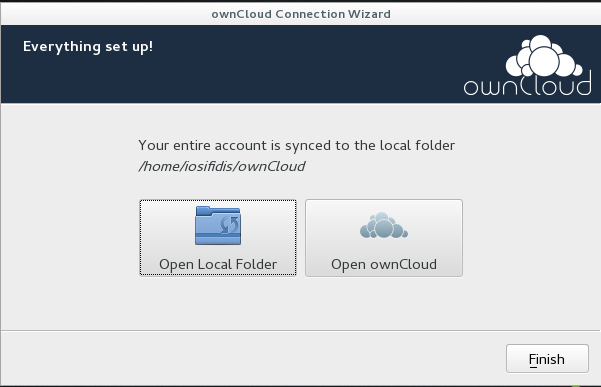
You’re all set. Connect to server.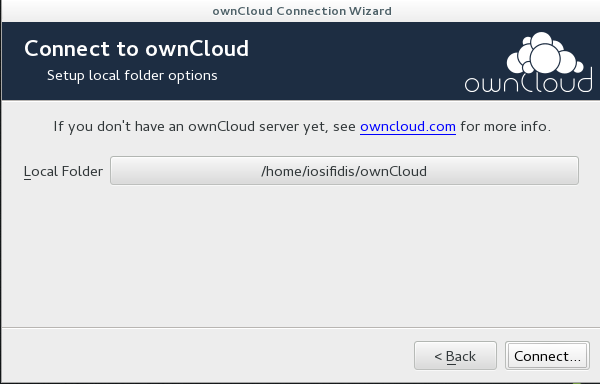
3. Sync desktop with server: Your desktop will start sync with server.
Everything is synced.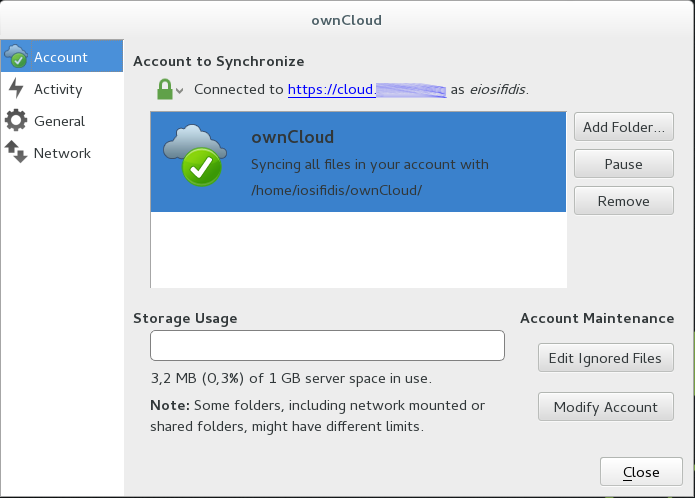
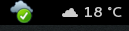
There’s an indicator that shows your desktop is synced. You can open local folder, server folder, properties etc by clicking on this icon (the cloud with temperature is GNOME weather extension):